Jump to a section
If you searched for an “online hotspot” or “no download” option, start with the feature built into Windows. A web page alone does not turn an ordinary PC’s wireless adapter into a hotspot.
Check the host before starting
Our current Free WiFi Hotspot application supports Windows 11 and Windows 10 version 2004, build 19041, or later. That is the application’s requirement; the availability of Windows’ own controls also depends on the device and its configuration.
- The PC can already reach the internet.
- Its Wi-Fi adapter and driver support hotspot sharing.
- The network owner or provider permits the connection to be shared.
- The PC can remain powered for the sharing session.
Set up the built-in Windows hotspot
Windows 10 uses slightly different labels. Use its Mobile hotspot page to choose the source, edit the network details and switch sharing on.
- Open Settings → Network & internet → Mobile hotspot.
- In Share my internet connection from, select the working source connection.
- Where a Share over choice is available, choose Wi-Fi for a Wi-Fi hotspot.
- Review the network name and password. Use Edit in the properties area if you need to change them.
- Enable Mobile hotspot.
- On the receiving device, select the hotspot in its Wi-Fi list and enter the password.
Connect with a password or supported QR option
Use the network details shown by the host PC. Current Windows 11 offers QR-code joining on supported versions, so a compatible phone may be able to scan the displayed code. This capability also exists in Windows itself.
Treat a QR code containing Wi-Fi credentials like the password it represents. Show it to the people who need access rather than publishing it.
Confirm that sharing works
The useful test is whether your device can perform the task you need. An advertised link speed or strong signal icon does not guarantee the same internet speed on every connection.
- Start with one nearby receiving device.
- Check that it joins the intended network.
- Open a page on that device.
- If it joins without internet, recheck the source connection on the PC.
Use a separate application if you prefer
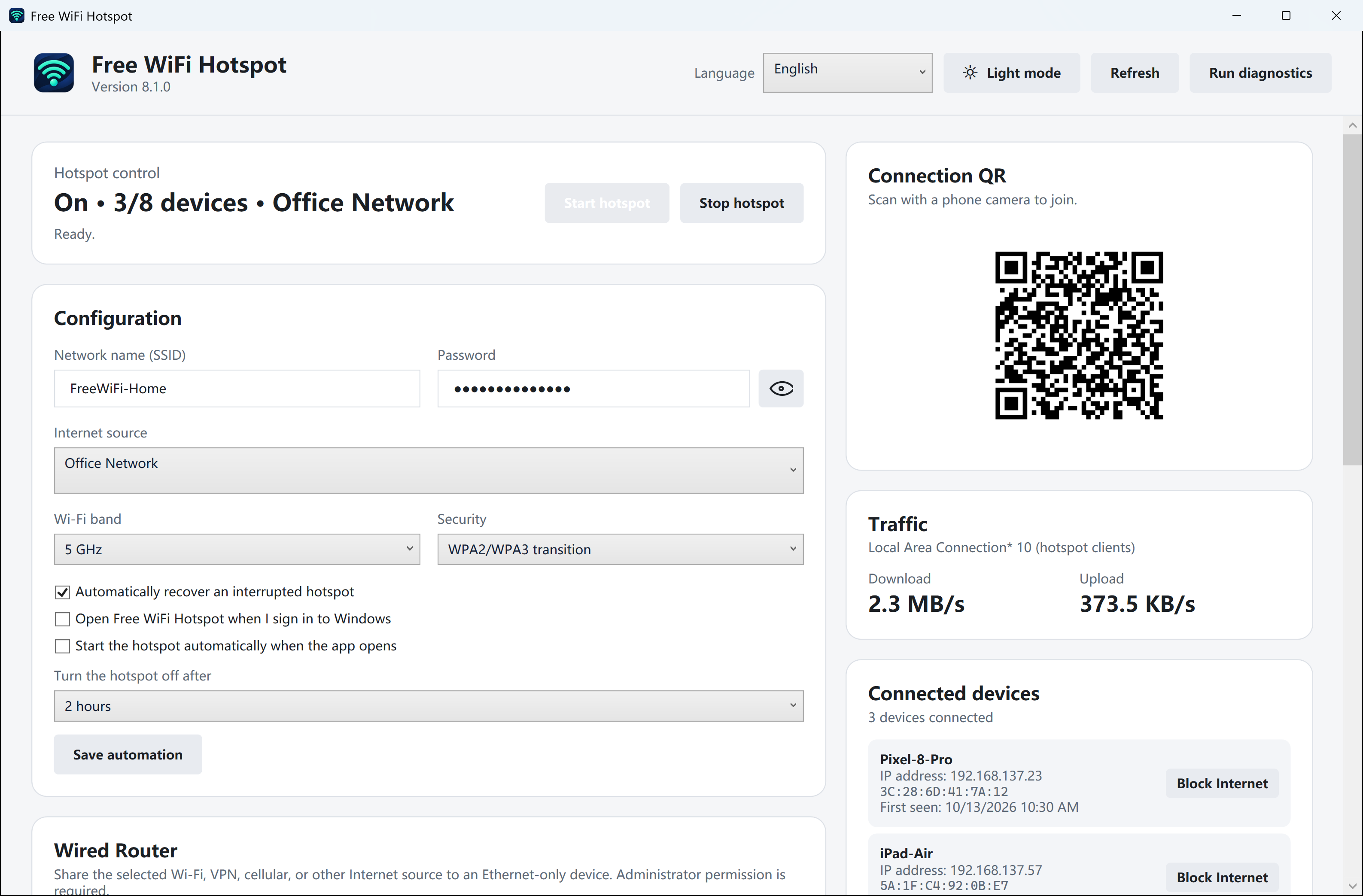
Free WiFi Hotspot provides a dedicated Windows interface for hotspot settings, a connection QR code and diagnostics. Download the Windows installer, confirm the system requirements and review the network details in the application before starting.
When you finish a temporary session, stop sharing. Devices using the hotspot will need another connection if they still need internet access.
Frequently asked questions
Can I create a hotspot without downloading software?
A compatible Windows PC can use the Mobile hotspot settings already included in Windows. An extra download is not required for every setup.
Can a browser create the hotspot for me?
A normal website does not by itself configure a PC’s hotspot radio. Use the operating system’s controls or compatible installed software.
Does the hotspot include an internet subscription?
No. It shares a connection you already have. Mobile data charges and network access conditions still apply.
What if the other device joins but cannot browse?
Check that the PC itself has internet and that the intended source is selected. Then follow the hotspot troubleshooting guide.
Prefer a separate Windows application?
Download Free WiFi Hotspot free for Windows 11 or Windows 10 version 2004 and later. A supported Wi-Fi adapter and an existing internet connection are required.
Download Free for Windows