
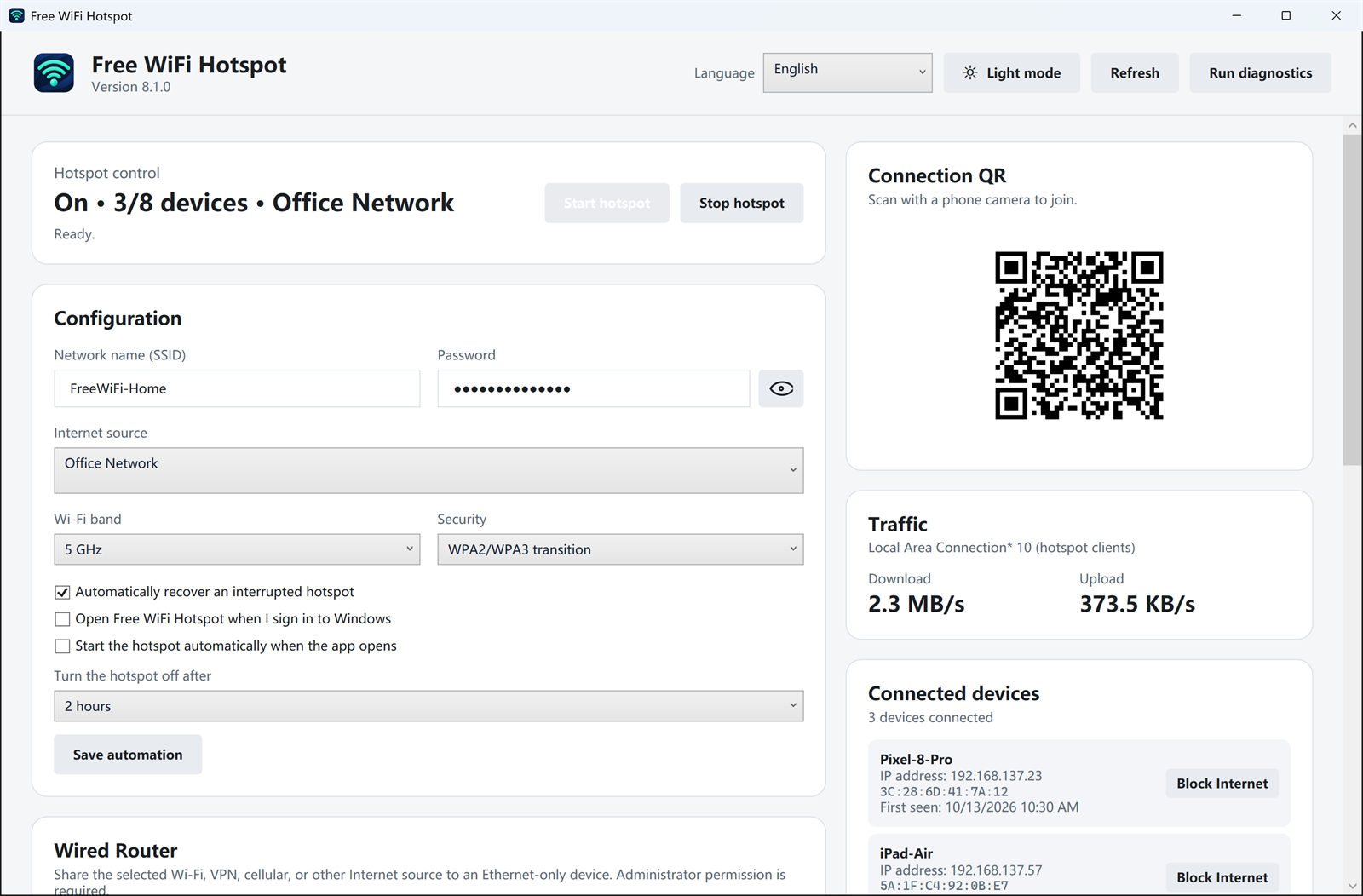
The switches sit under the network name and internet source. They are off until you turn them on. Each one answers a different interruption.
Recover an interrupted hotspot
Turn on Automatically recover an interrupted hotspot if the share drops when the PC sleeps, the cable is replugged, or Windows restarts the adapter. The app brings the same network name back instead of leaving phones connected to nothing.
Start when you sign in
Open Free WiFi Hotspot when I sign in to Windows launches the app with your Windows session. Use it on a PC that stays at a desk and shares Ethernet every day.
Start when the app opens
Start the hotspot automatically when the app opens shares the last internet source as soon as the window is up. Leave this off on a laptop you also use on other people's networks.
Turn it off after a set time
Turn the hotspot off after stops sharing when the timer ends. Two hours is one of the choices. Use it when you are sharing a metered phone tether or you do not want the hotspot left on overnight.
These options do not bypass a sign-in page on the upstream network. Confirm the PC can browse before you rely on an automatic start. If a start fails, the PC check shows which service or adapter stopped it.