Follow the signal
- Android phone Mobile data on
- USB cable PC gets internet
- PC hotspot Broadcasts Wi-Fi
- Tablet Joins the PC
Make the cable connection work first
Check that your carrier and plan allow tethering. Connect the Android phone to the PC with a data-capable USB cable, enable mobile data and turn on USB tethering in the phone’s network settings. If the option stays grey, unlock the phone and try a known data cable.
Pick the phone’s connection on Windows
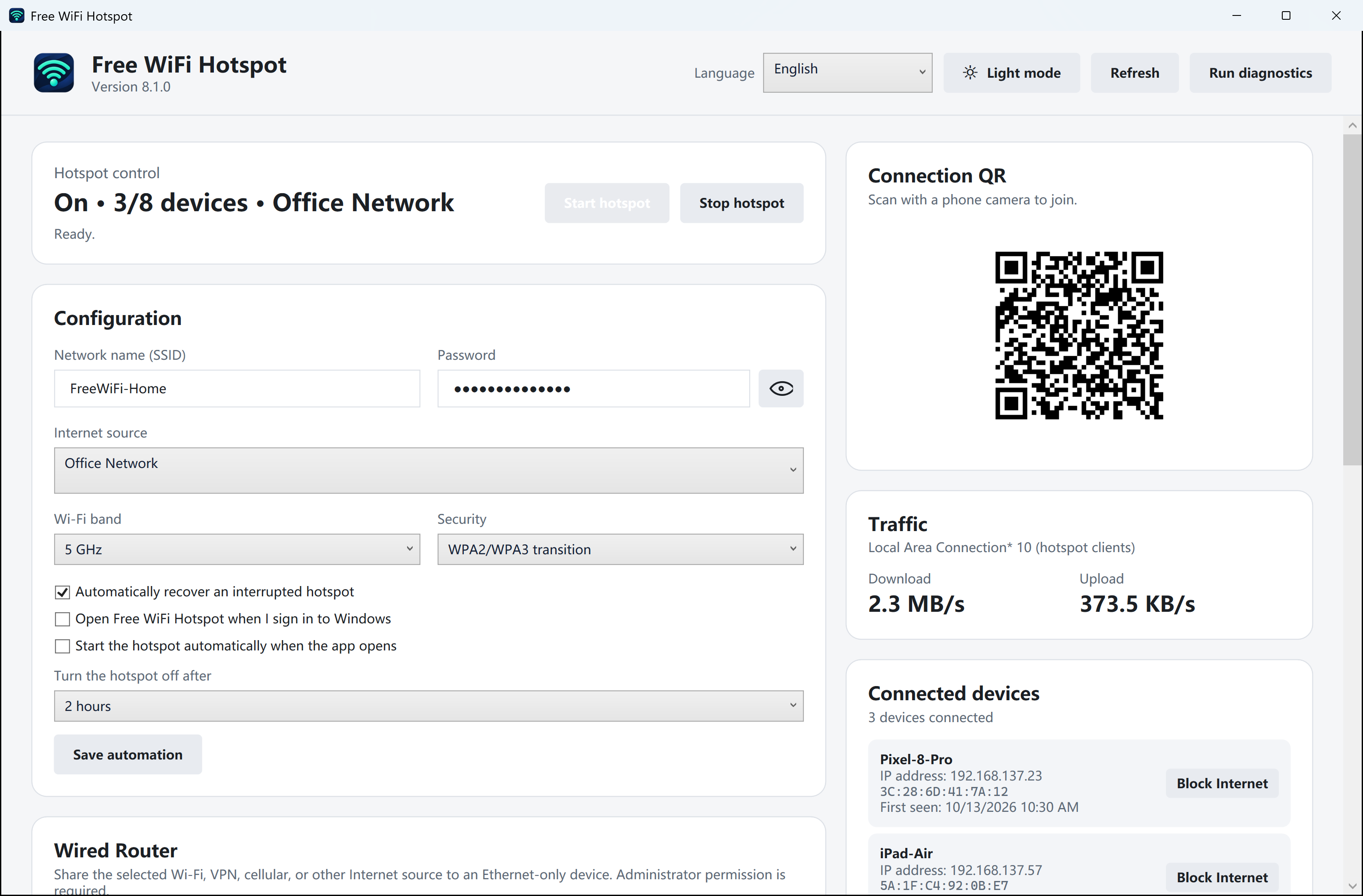
Look for the network adapter that appears when USB tethering starts. Test a new web page on the PC before starting the hotspot. In Mobile hotspot, choose that upstream connection if Windows lists it, then share over Wi-Fi. The PC still needs a compatible Wi-Fi adapter.
Join from the tablet
On the tablet, select the PC hotspot name. Check that the tablet appears on the dashboard and opens a fresh page. Disconnecting the USB cable removes the data source even if the tablet still shows a Wi-Fi icon.