Jump to a section
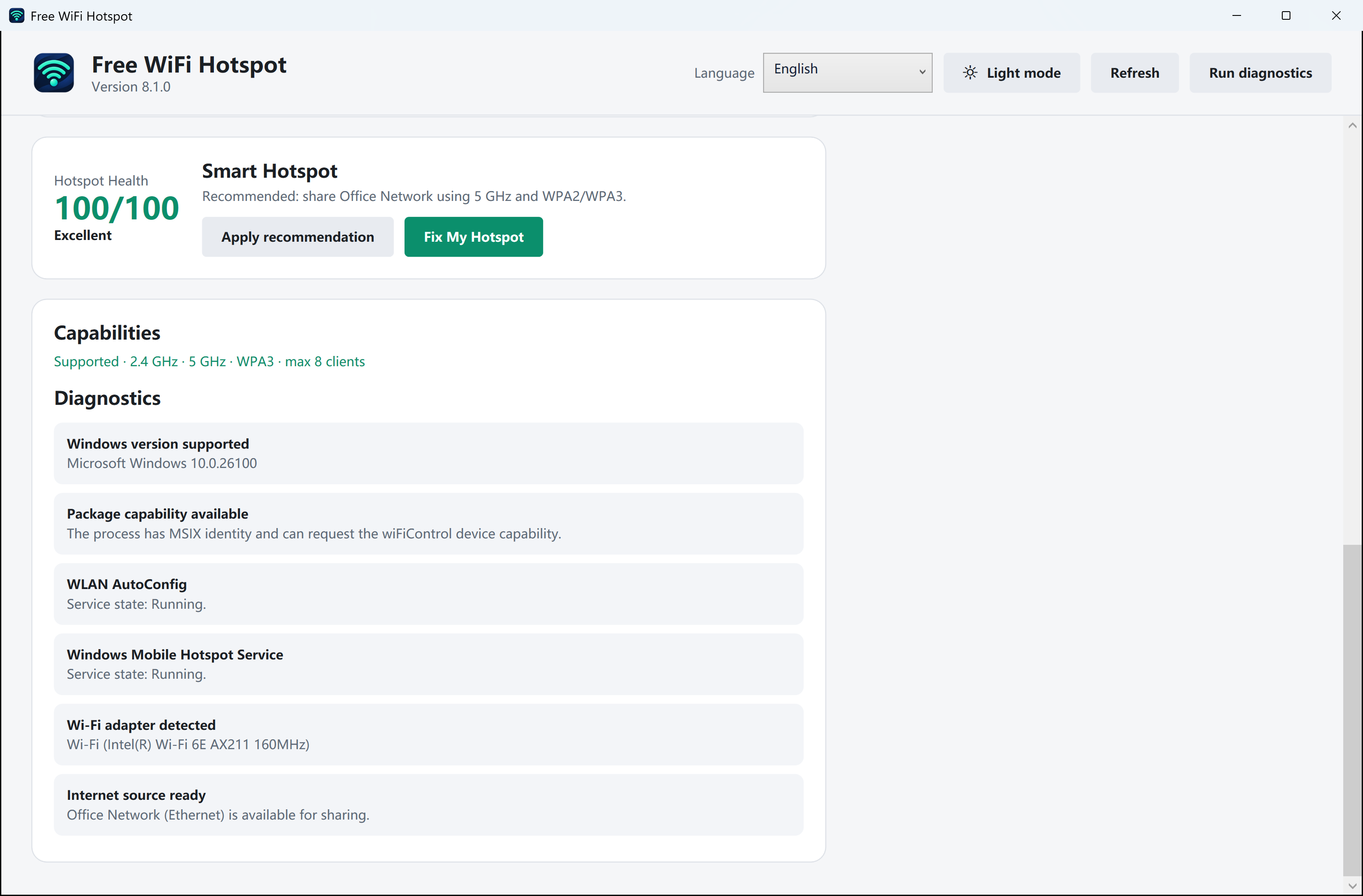
Check whether Windows sees a Wi-Fi adapter
- Open Settings → Network & internet. Look for Wi-Fi. If it is present, turn off Airplane mode, turn on Wi-Fi and check that your PC can see nearby networks.
- If Wi-Fi is absent, open Device Manager → Network adapters. Find the Wi-Fi adapter by its model name. A Wi-Fi adapter with a warning needs attention even when Ethernet works.
- On a desktop without Wi-Fi hardware, check the specifications for a Wi-Fi adapter whose manufacturer supports Windows mobile hotspot on your version of Windows. A working Ethernet adapter does not broadcast Wi-Fi.
Check a disabled adapter or driver
- If Enable device is available when you right-click your own Wi-Fi adapter, select it. If you see a warning, check Windows Update for driver updates or use the driver for the exact adapter model from the manufacturer.
- Restart Windows if the driver update asks you to. Check that Wi-Fi appears in Settings and can discover networks before you return to Mobile hotspot.
- If settings are managed by your work or school, ask the administrator about sharing restrictions. On a supported PC, the built-in Mobile hotspot switch is also a useful check before opening Free WiFi Hotspot.
Verify that sharing starts
Connect the PC to the internet and turn on Mobile hotspot. If a second device can see the network, join it and confirm it can browse while using Wi-Fi. Turn the hotspot off once the test is complete.
If your device can see the hotspot and join it but has no internet, work through the Ethernet and sharing-source checks.