Windows 11 Mobile Hotspot Not Working? 12 Proven Fixes

Windows 11 Mobile Hotspot not working? You may see a grayed-out switch, a missing hotspot option, a phone that cannot find the network, or a connected device with no internet access. The good news is that most hotspot failures come from a wrong sharing source, a stopped Windows service, a Wi-Fi driver problem, or damaged network settings.

Windows 11 mobile hotspot not working troubleshooting illustration

This guide starts with the fastest checks and moves toward deeper repairs. Test the hotspot after each fix so you can stop as soon as it works.

Updated for Windows 11 in August 2026.

Quick answer: try these fixes first

  1. Restart the PC and the device that is trying to connect.
  2. Open Settings > Network & internet > Mobile hotspot.
  3. Choose the correct connection under Share my internet connection from.
  4. Set Share over to Wi-Fi.
  5. Change the network band to 2.4 GHz if a phone or older device cannot see the hotspot.
  6. Temporarily disconnect any VPN, then test again.
  7. Restart the Internet Connection Sharing and WLAN AutoConfig services.
  8. Update or reinstall the wireless network adapter driver.

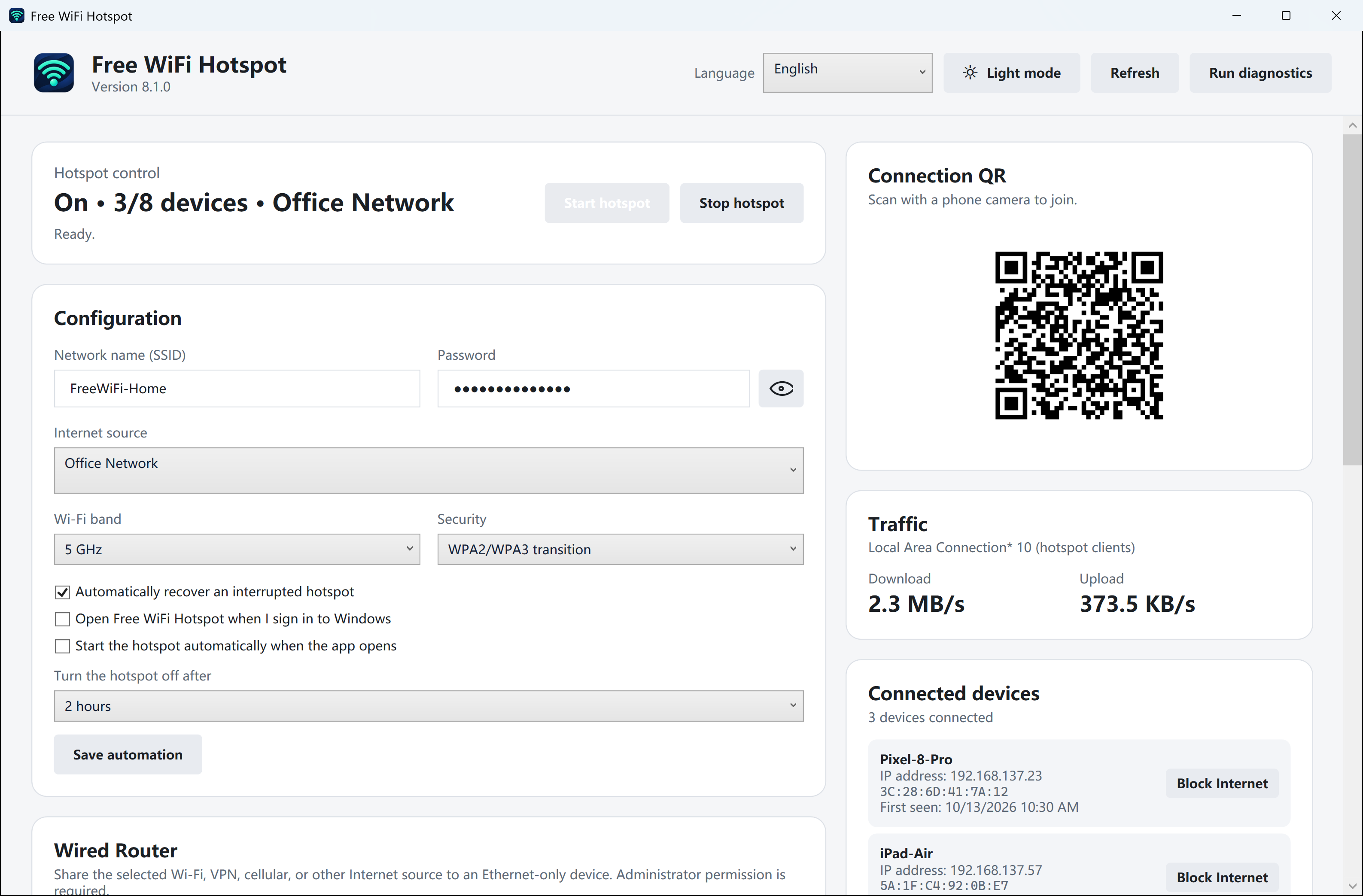
If the Windows feature still fails after the checks below, you can also try Free WiFi Hotspot 8.0.0 for Windows 11 and Windows 10.

First, confirm the hotspot is configured correctly

Before repairing Windows, verify the basic setup. Microsoft says Windows 11 can share a Wi-Fi, Ethernet, or cellular connection over Wi-Fi or Bluetooth.

  1. Press Windows + I to open Settings.
  2. Select Network & internet, then Mobile hotspot.
  3. Under Share my internet connection from, select the connection that currently has internet access. For example, select Ethernet if the PC is connected by cable.
  4. Under Share over, choose Wi-Fi.
  5. Expand Properties and select Edit to confirm the network name, password, and network band.
  6. Turn on Mobile hotspot.

Connect your phone or tablet using the displayed network name and password. You can compare these steps with Microsoft’s official mobile hotspot instructions.

Identify the symptom before changing settings

Symptom Most likely causes Start with
Mobile Hotspot option is missing Disabled adapter, driver issue, WLAN service stopped Fixes 4, 5, and 7
The switch is grayed out or will not stay on Wrong source connection, sharing service, VPN conflict Fixes 2, 3, and 5
Phone connects but has no internet Wrong shared adapter, ICS problem, DNS or TCP/IP issue Fixes 2, 5, and 6
Hotspot does not appear on another device 5 GHz compatibility, driver, hidden/old network profile Fixes 3 and 7
Hotspot keeps disconnecting Power saving, unstable driver, weak upstream connection Fixes 1, 7, and 8

1. Restart both devices and verify the source internet connection

Restart the Windows 11 PC and the phone, tablet, or laptop that is trying to connect. Then confirm that the host PC can open a few websites before enabling the hotspot. A hotspot cannot provide internet access if the PC’s Ethernet, Wi-Fi, or cellular connection is already offline.

If the source is Wi-Fi, disconnect and reconnect it. If the source is Ethernet, reseat the cable and confirm Windows shows an active connection.

2. Select the correct connection to share

A common cause of “connected, no internet” is sharing an inactive adapter. Return to Settings > Network & internet > Mobile hotspot and check Share my internet connection from.

  • If the PC gets internet through a cable, choose Ethernet.
  • If the PC gets internet from another wireless network, choose Wi-Fi.
  • If the PC has mobile broadband, choose the active Cellular connection.

Turn Mobile Hotspot off, wait ten seconds, and turn it on again after changing the source.

3. Use 2.4 GHz for better device compatibility

If the hotspot works but another device cannot find it, the network band may be the problem. Some older phones, smart-home devices, Wi-Fi adapters, and regional hardware configurations cannot connect to a 5 GHz hotspot.

  1. Open Settings > Network & internet > Mobile hotspot.
  2. Expand Properties and select Edit.
  3. Change Network band to 2.4 GHz.
  4. Save the change and restart the hotspot.

Once everything works, you can test 5 GHz again for higher speed at short range.

4. Run the Windows Network and Internet troubleshooter

Windows 11 includes automated network diagnostics in the Get Help app. Open Settings, search for network troubleshooter, and run the recommended Network and Internet diagnostic. Apply any suggested repair, restart the PC, and test Mobile Hotspot again.

Microsoft recommends the automated troubleshooter as an early step for Windows 11 connection problems in its Windows Wi-Fi troubleshooting guide.

5. Restart the hotspot-related Windows services

Mobile Hotspot depends on Windows networking services. If the hotspot switch is missing, stuck, or immediately turns off, restart these services:

  1. Press Windows + R, enter services.msc, and press Enter.
  2. Find Internet Connection Sharing (ICS).
  3. Right-click it and select Restart. If it is stopped, select Start.
  4. Find WLAN AutoConfig and restart it as well.
  5. Close Services and test the hotspot.

On managed work or school computers, an administrator policy may prevent these services from running. In that case, contact the organization’s IT administrator rather than changing policy or registry settings.

6. Reset Winsock, TCP/IP, and DNS

Damaged network stack settings can let a device connect to the hotspot while preventing internet access. Run the standard Windows network reset commands:

  1. Open Start and type Command Prompt.
  2. Select Run as administrator.
  3. Run these commands one at a time:
netsh winsock reset
netsh int ip reset
ipconfig /release
ipconfig /renew
ipconfig /flushdns

Restart Windows after the commands finish. These commands do not delete personal files, but they reset important parts of the network configuration.

7. Update or reinstall the Wi-Fi adapter driver

A broken or outdated wireless driver is one of the most common reasons the Windows 11 Mobile Hotspot option disappears or stops working after an update.

  1. Right-click Start and select Device Manager.
  2. Expand Network adapters.
  3. Right-click the wireless adapter and select Update driver.
  4. Select Search automatically for drivers.

If Windows says the best driver is already installed, check the PC or Wi-Fi adapter manufacturer’s support site for a Windows 11 driver. Use the exact model number and avoid unofficial driver-download websites.

If the problem started immediately after an update, open the adapter’s Properties > Driver tab and use Roll Back Driver if that option is available.

As a final driver repair, download a backup driver first, then uninstall the wireless adapter in Device Manager and restart the PC. Windows will normally detect and reinstall the adapter during startup.

8. Stop Windows from powering down the Wi-Fi adapter

If the hotspot starts correctly but disconnects after a few minutes, power management may be turning off the wireless adapter.

  1. Open Device Manager > Network adapters.
  2. Open the wireless adapter’s Properties.
  3. Select the Power Management tab.
  4. Clear Allow the computer to turn off this device to save power.
  5. Select OK and restart the PC.

This option may not appear with every driver. If it is absent, continue to the next fix.

9. Disconnect VPN and check security software

Some VPN clients create virtual network adapters or change routing rules that interfere with Internet Connection Sharing. Disconnect the VPN completely and test the hotspot. If that solves the problem, look for a setting such as Allow local network access or LAN traffic in the VPN application.

Do not permanently disable Windows Firewall. If third-party security software appears to be the cause, update it or contact its vendor for the correct local-network sharing rule.

10. Install Windows and manufacturer updates

Open Settings > Windows Update and install available updates. Also check Advanced options > Optional updates for network driver updates. Restart even if Windows does not immediately request it.

For laptops and branded desktops, also check the manufacturer’s support utility for chipset, BIOS, and wireless adapter updates. Install only updates intended for the exact device model.

11. Use Network Reset as the last Windows repair

If none of the earlier fixes work, Windows Network Reset can remove and reinstall network adapters and return their settings to defaults.

  1. Open Settings > Network & internet.
  2. Select Advanced network settings > Network reset.
  3. Select Reset now, confirm, and allow the PC to restart.

Important: do this last. You may need to reconnect to saved Wi-Fi networks and reinstall or reconfigure VPN clients, Hyper-V virtual switches, or other networking software afterward.

12. Try a dedicated hotspot application

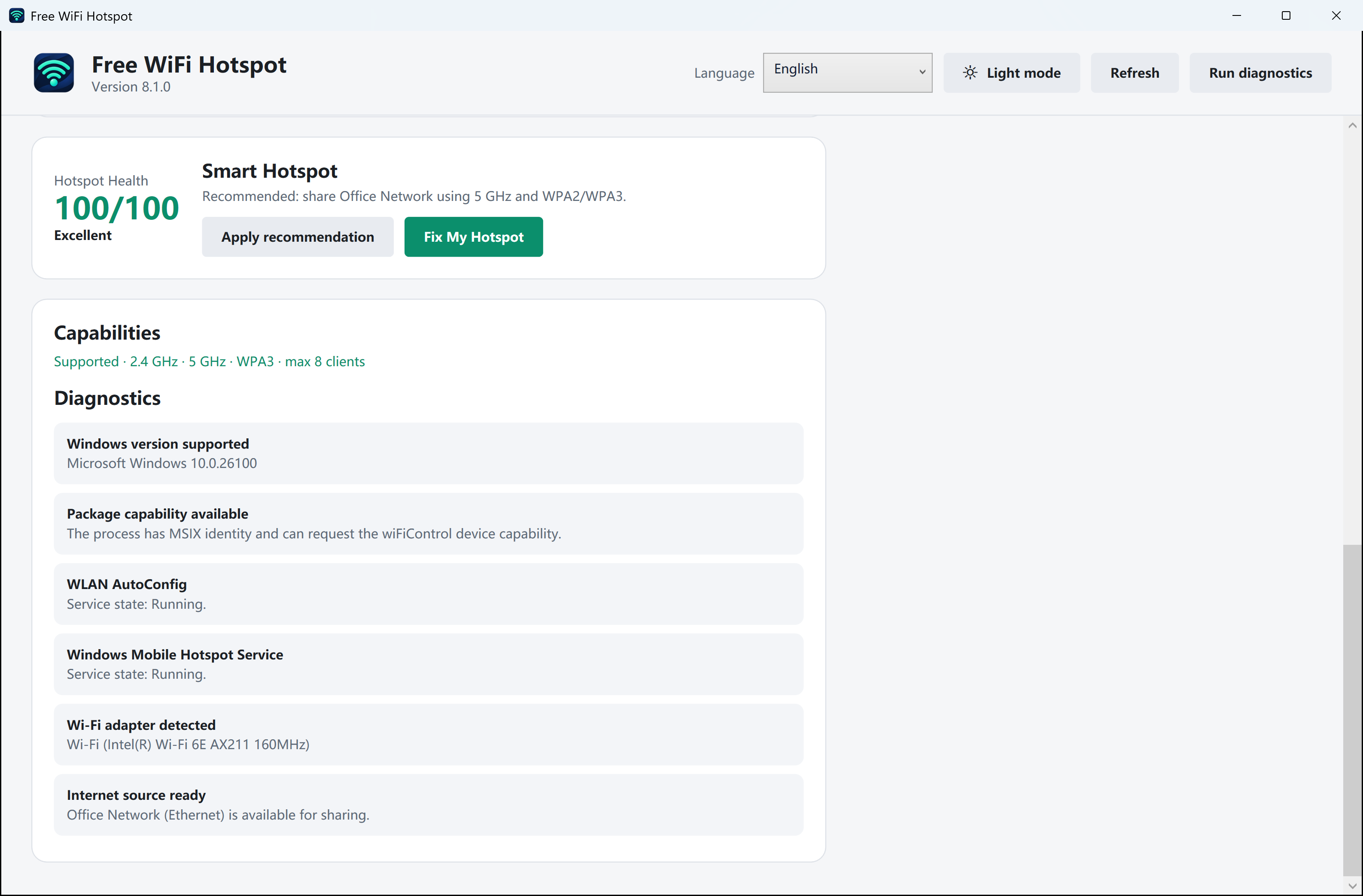
If the Windows hotspot interface still will not start—or you want a simpler way to share a connection—try Free WiFi Hotspot 8.0.0. It supports Windows 11 and Windows 10 and provides a dedicated interface for naming, securing, starting, and monitoring your hotspot.

Download Free WiFi Hotspot 8.0.0

A dedicated application still requires a working and compatible network adapter. If Device Manager does not detect the wireless hardware, repair the driver or hardware first.

Fixes for specific Windows 11 hotspot symptoms

Mobile Hotspot is connected but there is no internet

Confirm the PC itself has internet, select the correct source adapter, disconnect VPN software, restart Internet Connection Sharing, and then run the network commands in Fix 6. Also check whether the connected device received a normal private IP address rather than a self-assigned address beginning with 169.254.

The Mobile Hotspot option is missing or grayed out

Make sure the Wi-Fi adapter is enabled in Device Manager. Restart WLAN AutoConfig and Internet Connection Sharing, then update the wireless driver. A desktop PC without a Wi-Fi adapter cannot broadcast a Wi-Fi hotspot.

Another device cannot see the hotspot name

Change the hotspot band to 2.4 GHz, shorten the network name, and restart both devices. On the client device, remove any old saved profile with the same hotspot name before reconnecting.

The hotspot keeps turning off or disconnecting

Disable Wi-Fi adapter power saving, update the driver, and verify that the source internet connection is stable. Keep the PC awake while it is sharing a connection; sleep and hibernation stop the hotspot.

Frequently asked questions

Can Windows 11 share Ethernet over Wi-Fi?

Yes. In Mobile hotspot settings, choose Ethernet under Share my internet connection from and Wi-Fi under Share over. This is useful in hotels, offices, or rooms that provide only a wired connection.

Why does my phone connect to the hotspot but say “No internet”?

The PC may be sharing the wrong adapter, Internet Connection Sharing may be stopped, or a VPN may be changing the routing rules. Start with Fixes 2, 5, 6, and 9.

Should I use 2.4 GHz or 5 GHz?

Use 2.4 GHz for wider compatibility and longer range. Use 5 GHz for potentially higher speed at shorter range when every connected device supports it.

Does a Windows 11 hotspot need a Wi-Fi adapter?

Yes, if you want to broadcast the shared connection over Wi-Fi. The adapter and its Windows 11 driver must support the required wireless sharing features.

Will Network Reset delete my personal files?

No, it does not delete documents or photos. It does remove and reinstall network adapters and reset network settings, so saved connections, VPN software, and virtual networking tools may need attention afterward.

How do I make a Windows hotspot safer?

Use a unique WPA2/WPA3 password, do not include personal information in the network name, disconnect unknown devices, and turn the hotspot off when it is not needed. See our guide to protecting a Wi-Fi hotspot with a password.

Final checklist

  • The host PC has a working internet connection.
  • The correct Ethernet, Wi-Fi, or cellular source is selected.
  • Share over is set to Wi-Fi.
  • The hotspot uses 2.4 GHz when compatibility is more important than speed.
  • Internet Connection Sharing and WLAN AutoConfig are running.
  • The wireless driver is current and power saving is disabled.
  • VPN software has been ruled out.
  • Network Reset is reserved for the final step.

For more background troubleshooting, read our guide to fixing Windows Wi-Fi problems and learn additional ways to create a Wi-Fi hotspot.